
NewsTap
  • News
    • US
    • UK
    • Africa
    • America
    • Home
    • Asia
    • Europe
  • Sports
  • Biography
  • Business
  • Billionaires
  • Entertainment
    • Celebrity
  • Health
  • Lifestyle
  • Jobs
    • Add a Job
    • Candidate Dashboard
    • Employer dashboard
  • My Profile
    • Submit Post
    • Edit Profile
    • Logout
No Result
View All Result
  • News
    • US
    • UK
    • Africa
    • America
    • Home
    • Asia
    • Europe
  • Sports
  • Biography
  • Business
  • Billionaires
  • Entertainment
    • Celebrity
  • Health
  • Lifestyle
  • Jobs
    • Add a Job
    • Candidate Dashboard
    • Employer dashboard
No Result
View All Result
NewsTap
No Result
View All Result
Home Tech

The Complete Guide to Saving a WEBP Image as a JPG

Ava Roony by Ava Roony
August 23, 2024
in Tech
The Complete Guide to Saving a WEBP Image as a JPG

You might have noticed that some of the photographs you save from the internet are stored in the WEBP format. Compared to PNG or JPG files, photographs can hold more information thanks to the relatively new WEBP file format[1]. This works well for surfing the web, but it’s not always the best option if you […]

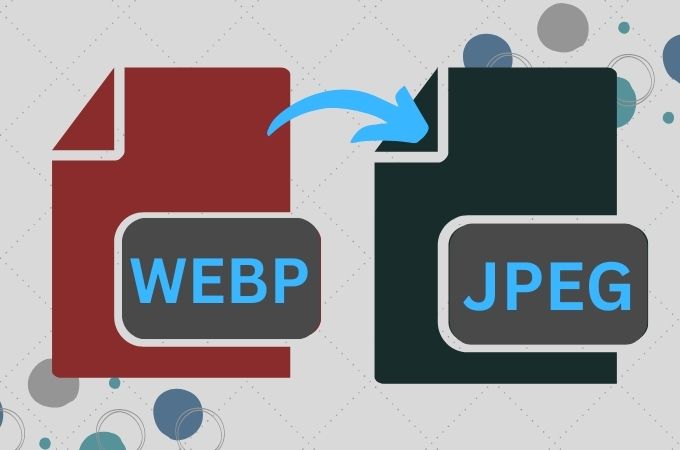
You might have noticed that some of the photographs you save from the internet are stored in the WEBP format. Compared to PNG or JPG files, photographs can hold more information thanks to the relatively new WEBP file format[1]. This works well for surfing the web, but it’s not always the best option if you want to use that image for another purpose. Numerous image editors and other applications are still unable to read WEBP files. We’ll show you eight methods in this post to export a WEBP file as a JPG (or JPEG) so you may use the pictures in other projects.

1. Find a WEBP image you want to save.
Copying and pasting a WEBP image straight from the web is the easiest way to save it as a JPG. You may import the picture straight into the photo editor of your choice thanks to this as well.
2. Right-click the WEBP image.
To perform a right-click on a Mac, click while holding down the Ctrl key.
3. Select Copy Image.
This will copy the image to your clipboard.
4. Open a photo editor of your choice.
You can use any other downloaded picture editor, such Photoshop, Lightroom, Canva, GIMP, or another one, or you can use Paint on Windows or Preview on Mac.
5. Create a new file.
Although the behavior of each software varies slightly, you can usually create a new file by clicking File > New.
You don’t need to create a new file because Paint will open with one that is blank by default.
If you’re using Preview, choose File > New from Clipboard after selecting the Preview menu item in the upper left corner.
6. Paste the image into the new file.
Although the functionality of each software will vary slightly, Paste is typically located under Edit > Paste. Alternatively, you can paste by simply pressing Ctrl+V on Windows or ⌘ Cmd+V on Mac.
You can skip this step if you pasted from your clipboard when using Preview.
7. Save the image as a JPG.
Each program will work a bit differently, but you can usually find options to save under File. Select Save as and save your image as a JPG.
Advertisement Banner

Discussion about this post

Recent Posts

  • Russia Accuses United States of Blocking UN Security Council Action on Gaza
  • Putin to Address War and Foreign Policy at Marathon Year-End News Conference
  • US House Defeats Efforts to Rein in Trump Venezuela Military Campaign
  • US Congress Passes Massive Defense Bill Including Ukraine Aid
  • Bayern Munich Fined and Handed Partial Stadium Closure by UEFA

Recent Comments

No comments to show.

Archives

  • December 2025
  • November 2025
  • October 2025
  • August 2025
  • August 2024
  • July 2024
  • June 2024
  • May 2024
  • April 2024
  • May 2023
  • February 2023
  • January 2023
  • December 2022
  • November 2022

Categories

  • Afghanistan
  • Africa
  • America
  • Asia
  • Billionaires
  • Biography
  • Business
  • Canada
  • Canada
  • Celebrities
  • Celebrity
  • China
  • Covid-19
  • Entertainment
  • Europe
  • Food
  • Football
  • France
  • Health
  • Indian
  • Indonesian
  • investement
  • Iran
  • Iranian
  • Israel-Palestine conflict
  • Italian
  • Japan
  • Leadership
  • Lifestyle
  • Mexico
  • Money
  • Music
  • News
  • Nigeria News
  • policy
  • Qatar
  • Russia
  • Sex & Relationship
  • Sports
  • Taiwan
  • Tech
  • train
  • travel
  • Turkey
  • U.K
  • UK
  • UK
  • Ukraine
  • Uncategorized
  • US

Tags

BayernMunich Congress Defense Diplomacy Gaza Military Politics Putin Russia Soccer Sports UEFA Ukraine UkraineWar UN US Venezuela
  • Terms
  • About Us
  • Privacy Policy
  • Advertise
  • Conact Us

© 2023 NewsTap All rights reserved.

No Result
View All Result
  • News
    • US
    • UK
    • Africa
    • America
    • Home
    • Asia
    • Europe
  • Sports
  • Biography
  • Business
  • Billionaires
  • Entertainment
    • Celebrity
  • Health
  • Lifestyle
  • Jobs
    • Add a Job
    • Candidate Dashboard
    • Employer dashboard

© 2023 NewsTap All rights reserved.